
How to resist browser fingerprinting
Fingerprinting turns tiny differences in how your browser draws, sounds, and lists fonts into a stable ID. Anti-fingerprinting tools normalize or block those probes so you blend in with other users.
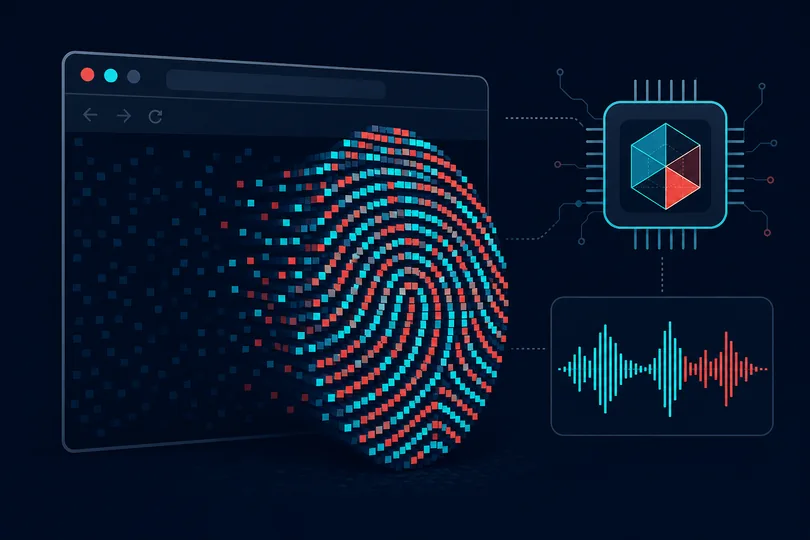
In one sentence: sites can recognize a browser from canvas, GPU, fonts, and similar probes even without cookies. This guide is how to reduce that.
What fingerprint probes measure
Canvas fingerprinting is like a hidden drawing test: the page asks your browser to render text and shapes, then reads back subtle pixel differences caused by your GPU, drivers, and fonts.
WebGL fingerprinting inspects your graphics chip — vendor, renderer, and supported features — which varies between devices.
Audio fingerprinting runs a short sound through the audio stack; hardware and drivers change the output slightly.
Font enumeration checks which system fonts exist by measuring glyph sizes. A long font list narrows down your device profile.
Extended probes on this site also include math-engine hashes, CSS media-query bundles, speech voice counts (hashed), secondary canvas draws (emoji and text metrics), dual audio pipelines, expanded font detection (~90 candidates), WebGL parameter bundles, and high-entropy Client Hints (architecture/bitness on Chromium).
Secondary signals scored without extra probes include color depth, usable screen area, CPU threads, device memory, plugins, PDF viewer status, Intl locale formatting, and Network Information API hints.
What this does not fix: your IP address, raw User-Agent string, Client Hints, or cookies — use the protection hub for those layers.
Related inferences we show today
On the analysis page, open the JavaScript and Overview tabs to find cards such as:
- Canvas fingerprint — drawing-test hash (hidden when the probe is blocked)
- WebGL renderer — GPU vendor and model strings
- Audio fingerprint — audio processing characteristics
- Font enumeration — installed font detection
- Fingerprint probes blocked — canvas, WebGL, audio, or font APIs failed; often means anti-fingerprinting is active
- Canvas randomization — two draws differ; Brave/Firefox-style protection may be on
- Math engine fingerprint — JS runtime floating-point signature
- Media query profile — dark mode, motion, pointer, and display gamut
- Speech voices — hashed voice list count (no raw names stored)
- WebGL parameters — extension and GPU limit enumeration
- High-entropy Client Hints — architecture and bitness on Chromium
- Intl locale surface — calendar and numbering system from Intl APIs
- Screen resolution & pixel ratio — width, height, and HiDPI ratio
- Color depth — when not the common 24-bit value
- Usable screen area — when taskbars or docks shrink the available desktop
- CPU threads & device memory — coarse hardware hints included in the demo hash
- Browser plugins — legacy
navigator.pluginscount (usually zero on modern browsers) - PDF viewer — whether a built-in PDF viewer is enabled
- Network hints — connection type plus RTT, downlink, or data-saver flags when Chromium exposes them
- Audio blocked — OfflineAudioContext unavailable; often a privacy browser setting
- WebGL privacy mode — masked vendor/renderer or software renderer flags
- Probe coverage — how many of the four core probes (canvas, WebGL, audio, fonts) succeeded
- Browser privacy profile — signals match Tor, Firefox, or Brave hardening expectations
- Fingerprint strength — estimated entropy in ~bits (low / moderate / high band)
On the Combined tab you may also see timezone offset mismatch when the IANA timezone and numeric UTC offset disagree (common with VPNs or manual clocks).
The Protections section on Overview lists Fingerprint probe blocking when two or more probes fail — that is usually a good sign, not a broken test.
How your privacy score uses these signals
Your privacy score (0–100 on the Overview gauge) is not based on canvas alone. Each inference card above has a scoring role: most exposure cards add weight, protective cards (blocked probes, canvas randomization, GPC) subtract, and consistency checks can reduce exposure when signals disagree. The score also factors estimated fingerprint entropy and how many core probes succeeded.
Refresh the page twice in the same tab to see a stability hint under your demo fingerprint hash — stable hashes are easier for trackers to reuse across visits.
Step-by-step: enable anti-fingerprinting
- Note your current exposure — run a baseline analysis and open the Fingerprint tab.
Firefox
- Settings → Privacy & Security → Enhanced Tracking Protection → Strict.
- For stronger hardening: type
about:config, searchprivacy.resistFingerprinting, set to true. - See our Firefox privacy check for browser-specific context.
Brave
- Click the Shields lion icon → set fingerprinting blocking to Strict or maximum.
- Keep Shields up on sites that run heavy analytics. Details: Brave privacy check.
Safari
- Settings → Safari → turn on Prevent Cross-Site Tracking and Hide IP Address where available.
- Safari limits some fingerprinting APIs by default; canvas and WebGL may still be readable on macOS.
Chrome / Edge
- Chrome has limited built-in fingerprint resistance — consider Firefox or Brave for stronger protection.
- Edge: Settings → Privacy → Tracking prevention → Strict.
- Block third-party cookies (Settings → Privacy → Cookies) to reduce cross-site tracking that pairs with fingerprints.
Tor Browser
- Use Tor Browser for the strongest fingerprint normalization — all users share the same fingerprint surface.
Verify with the analysis tool
- Run analysis again after changing settings.
- On the Overview tab, check whether fingerprint-related concerns dropped and your privacy score improved.
- Open the Fingerprint tab — canvas/WebGL/audio/font rows should show blocked, uniform, or error states when protection works.
- Refresh twice — if the demo fingerprint hash stays identical, trackers could recognize you consistently; after hardening it may change or probes may fail (that can be good).
- On Firefox/Tor, probe errors often mean protection is active, not that the test is broken.
Trade-offs
Strict anti-fingerprinting can break canvas games, bank-grade widgets, or sites that expect your real timezone. CAPTCHAs may appear more often. Use per-site exceptions instead of disabling protection globally.
Test whether your anti-fingerprinting settings actually block probes.
Run fingerprint analysisFrequently asked questions
Does a VPN stop fingerprinting?
No. A VPN changes your IP only. See the VPN guide.
Does private browsing help?
No — fingerprint probes work the same in Incognito. See private browsing limits.
Are uBlock Origin and similar extensions enough?
They block many fingerprinting scripts, but passive probes can still run. Combine extensions with browser-level resistance for best results.